
Quick Start Guide
3 things to do after receive your SonarPen
Quick Start Guide
3 things to do after receive your SonarPen
1. Watch step-by-step video to to get start with your

For iPadOS devices
(iPad released after 2017)
Step by step video to show how to use SonarPen 2 on iPad.
1. Watch step-by-step video to to get start with your
For iPadOS devices
(iPad released after 2017)
Step by step video to show how to use SonarPen 2 on iPad.
2. Receive a $5 signup bonus by joining SonarPen Affiliate program
Earn more money by helping us promote SonarPen
2. Receive a $5 signup bonus by joining SonarPen Affiliate program
Earn more money by helping us promote SonarPen
3. Subscript to SonarPen newsletter
Be the first to know about app update, discount and new product
3. Subscript to SonarPen newsletter
Be the first to know about app update, discount and new product
**Bonus for programmers
Coding samples available in JS, Python and Scratch 


|
|
 |
 |
 |
 |
|---|---|---|---|---|
|
For iOS devices |
For Android phones, tablets |
For Chromebook |
For Win 10, 11 computers |
For Mac with macOS 11 or newer |
|
iPad, iPhone and iPod touch |
Samsung, Motorola, Asus, Huawei, Xiaomi, Amazon Fire, etc.... |
HP, Acer, Samsung, ASUS, Lenovo, Dell, Google, etc.... |
HP, Microsoft, Dell, Asus, Lenovo, Acer, LG, Samsung, etc.... |
Desktop Mac and MacBook |
 Step by step video to show how to use SonarPen on iOS devices. 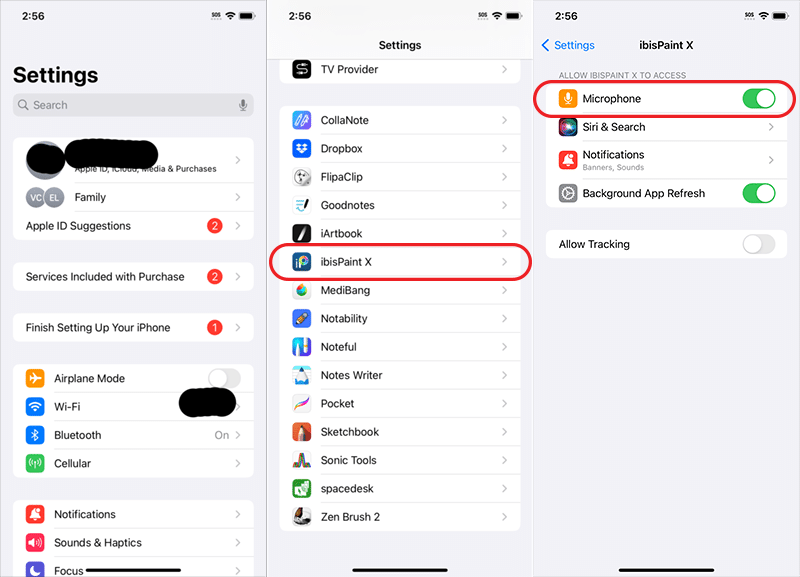 ***Special notice*** The latest ibis Paint X app has a bug that prevent the SonarPen to work properly. The app does not ask for Microphone access as shown in the video. A quick work around is to enable microphone access manually in iOS Settings App. |
 Step by step video to show you how to use SonarPen on Android device. |
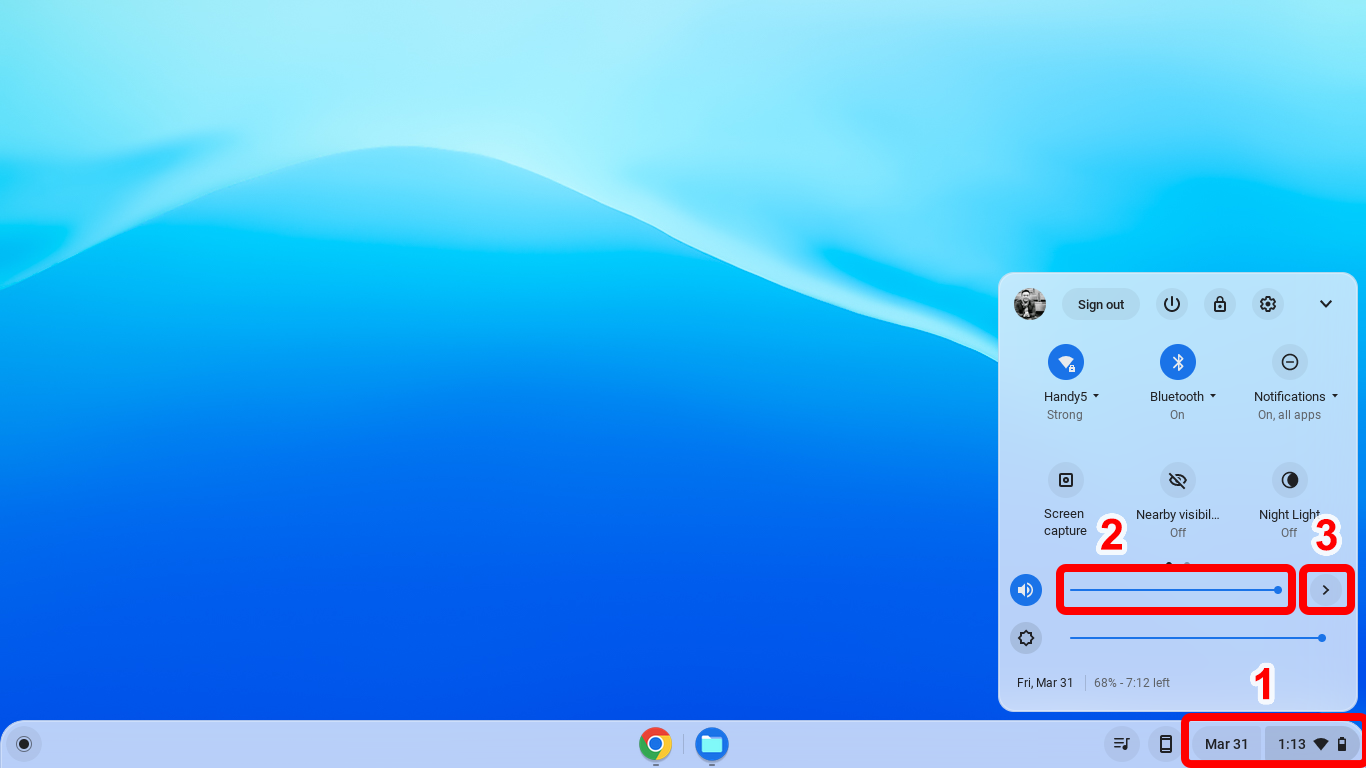 After plugin SonarPen with SonarPen Type-C adapter onto the Chromebook, adjust volume to maximum. 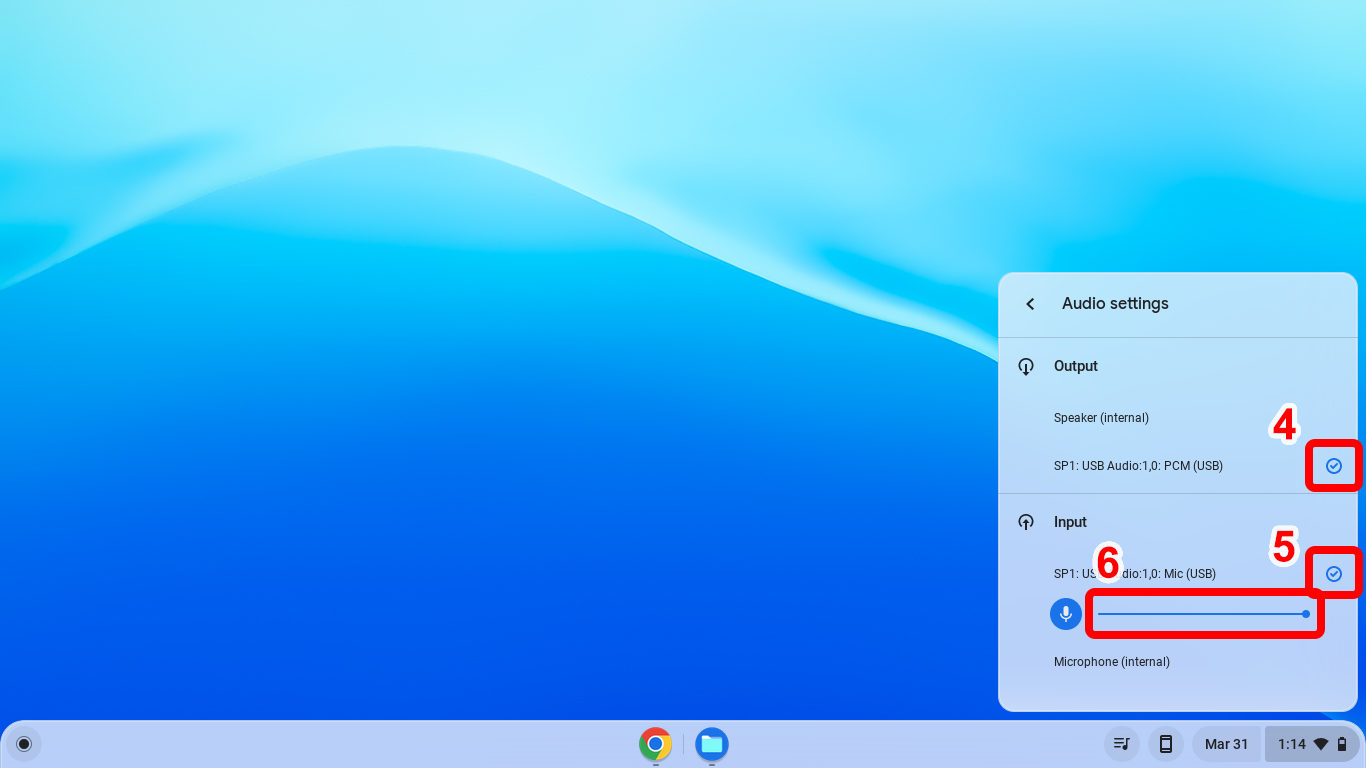 Make sure SP1 device is selected as Output and Input device, recording volume adjusted to maximum. Other steps are the same as Android devices, please refer to the tutorial video for Android. |
 Step by step video to show how to use SonarPen on Windows PC. |
 Step by step video to show how to use SonarPen on Mac. |
For all iOS devices
(iPad, iPhone and iPod touch)
Step by step video to show how to use SonarPen on iOS devices.
***Special notice***The latest ibis Paint X app has a bug that prevent the SonarPen to work properly. The app does not ask for Microphone access as shown in the video. A quick work around is to enable microphone access manually in iOS Settings App.
For all Android phones, tablets
(Samsung, Motorola, Asus, Vivo, Oppo, Huawei, Xiaomi, Amazon Fire, etc....)
Step by step video to show how to use SonarPen on Android devices.
For all Chromebook
(HP, Acer, Samsung, ASUS, Lenovo, Dell, Google, etc....)
After plugin SonarPen with SonarPen (USB C) adapter onto the Chromebook, adjust volume to maximum.
Make sure SP1 device is selected as Output and Input device, recording volume adjusted to maximum.
Other steps should be the same as Android devices, please refer to the tutorial video for Android.
For Windows 11 & Windows 10 notebooks & tablets
(HP, Microsoft, Dell, Asus, Lenovo, Acer, LG, Samsung, etc....)
Step by step video to show how to use SonarPen on Windows PC.
For Desktop Mac & MacBook with trackpad
(running macOS 11 or newer)
Step by step video to show how to use SonarPen on Mac.
How to enable SonarPen 2 in supported apps:
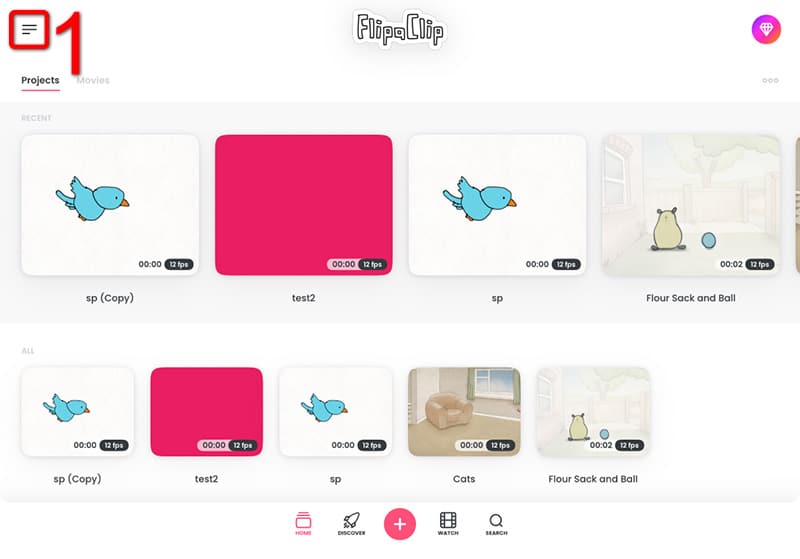
Download and run the FlipaClip app
1. Click the Menu icon on top left corner
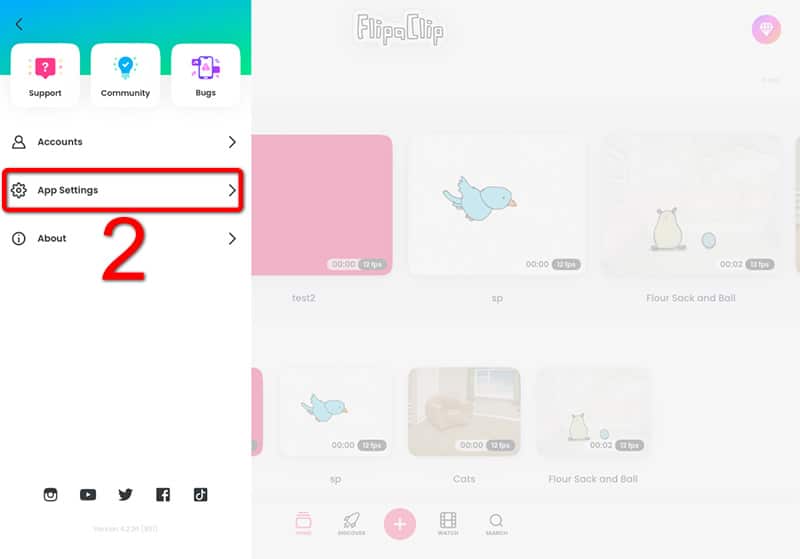
2. Click App Settings
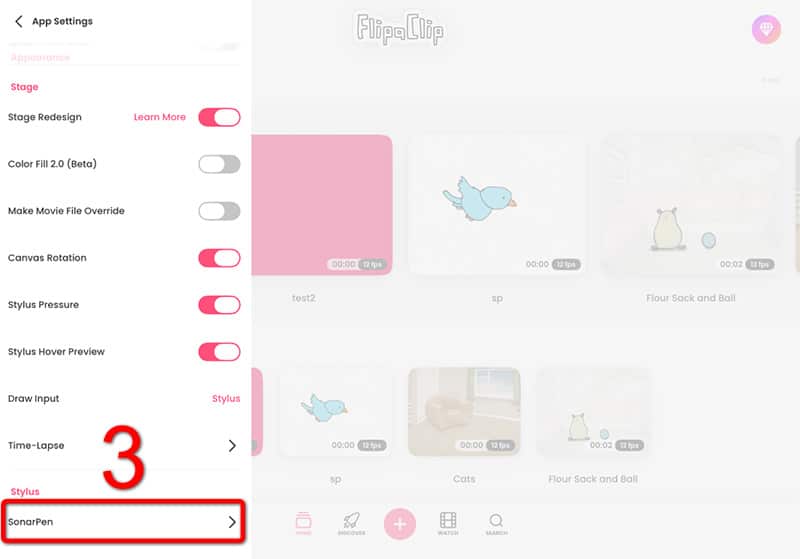
3. Click SonarPen under Stylus
4. Turn on the switch
** Click Allow to let FlipaClip to access the MIC to communicate with SonarPen 2
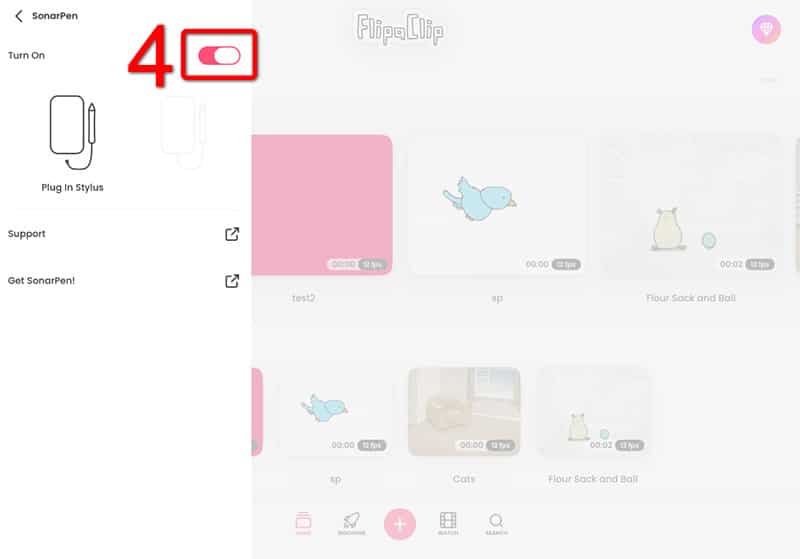
Plug in SonarPen 2 to the iPad and start animate 😎
Download and run the ibis Paint / ibis Paint X app
1. Click the GEAR icon on the top right corner
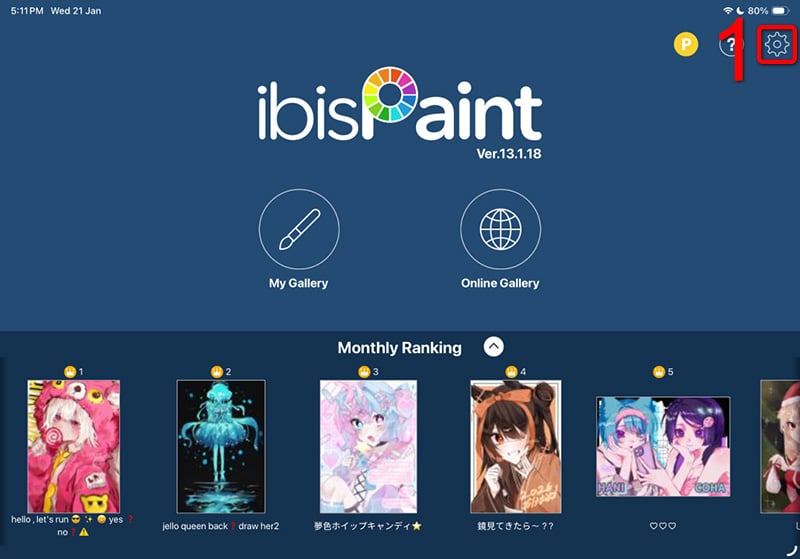
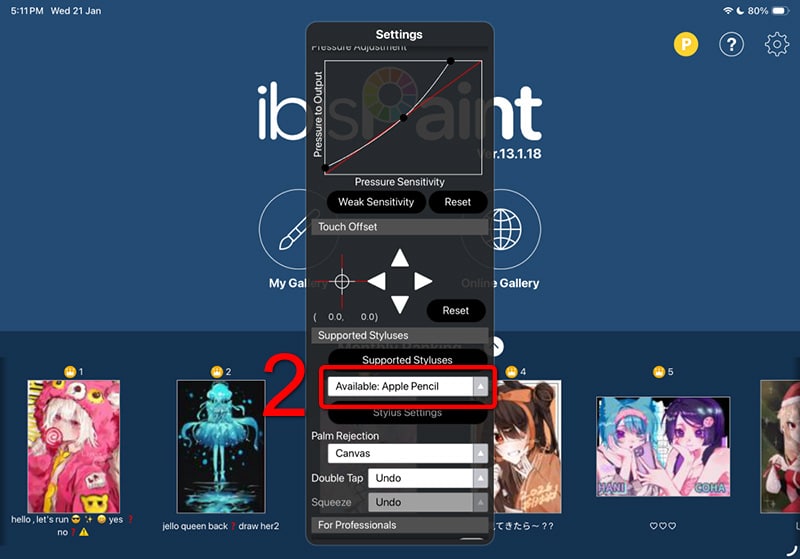
2. On the Settings dialog, scroll down to Supported Styluses
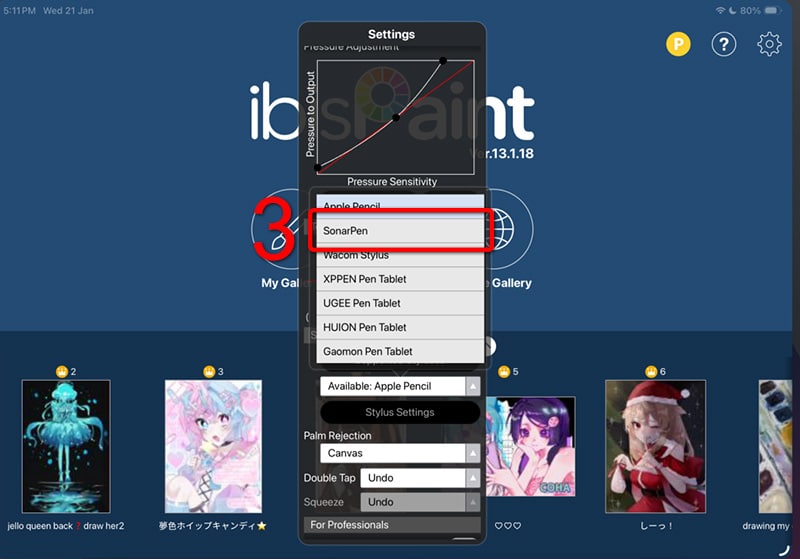
3. Select SonarPen
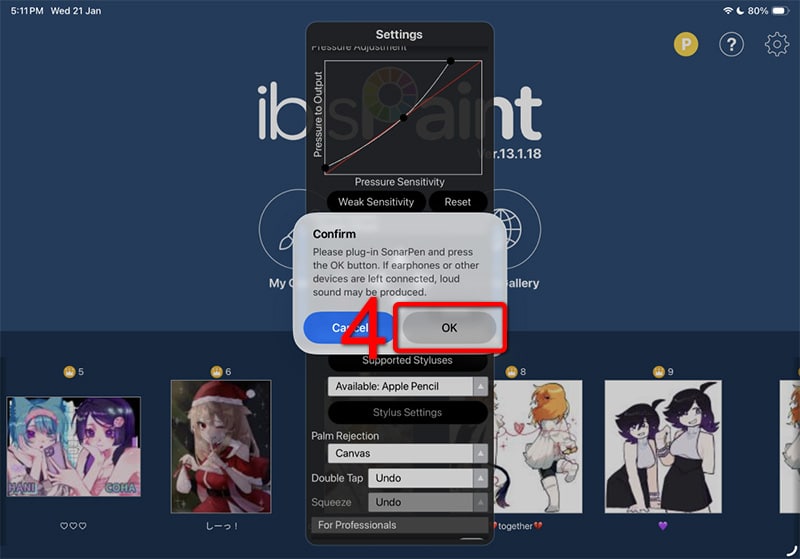
4. Click OK to use SonarPen
** Click Allow to let ibis Paint to access the MIC and communicate with SonarPen 2
Plug in SonarPen 2 to the iPad and start to draw 😀
Download and run the ShadowDraw app
1. Click Settings on the menu
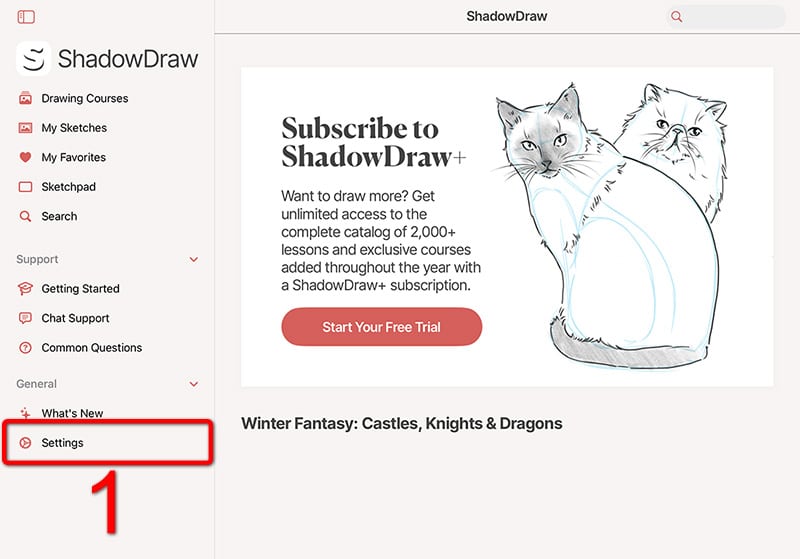
2. On the Settings panel, turn on the Enable SonarPen 2 switch
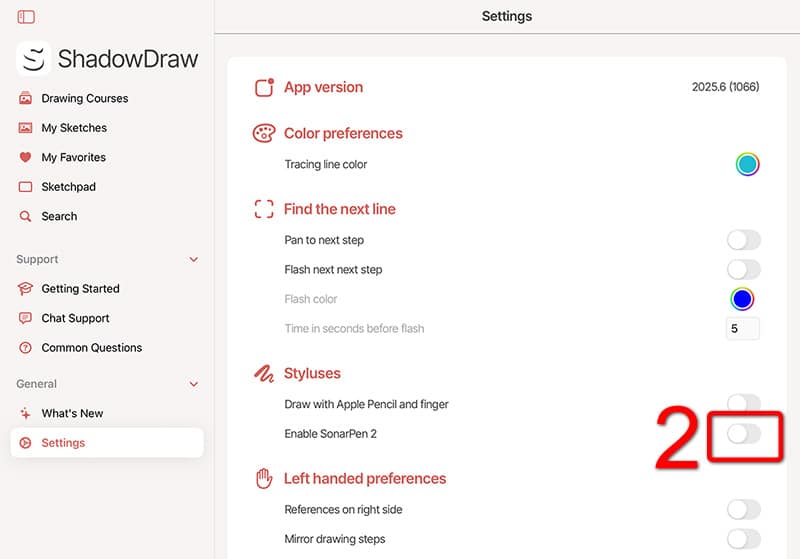
3. Click Allow to let ShadowDraw to access the MIC and communicate with SonarPen 2.
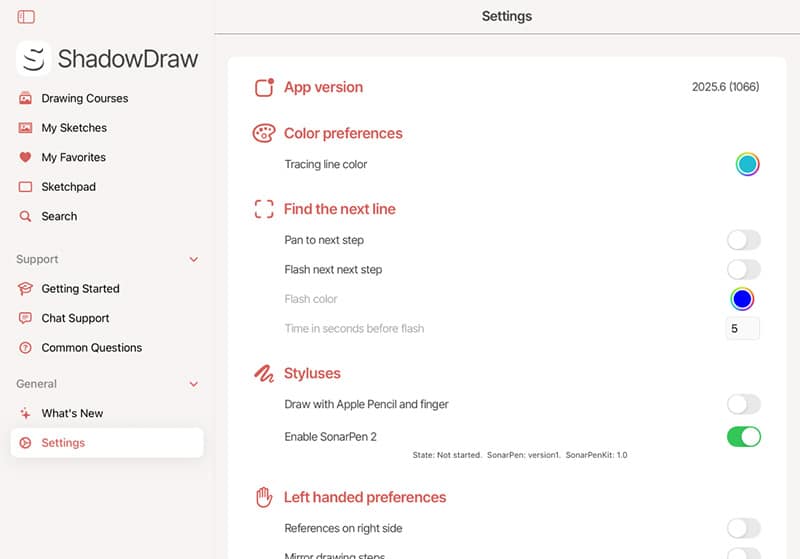
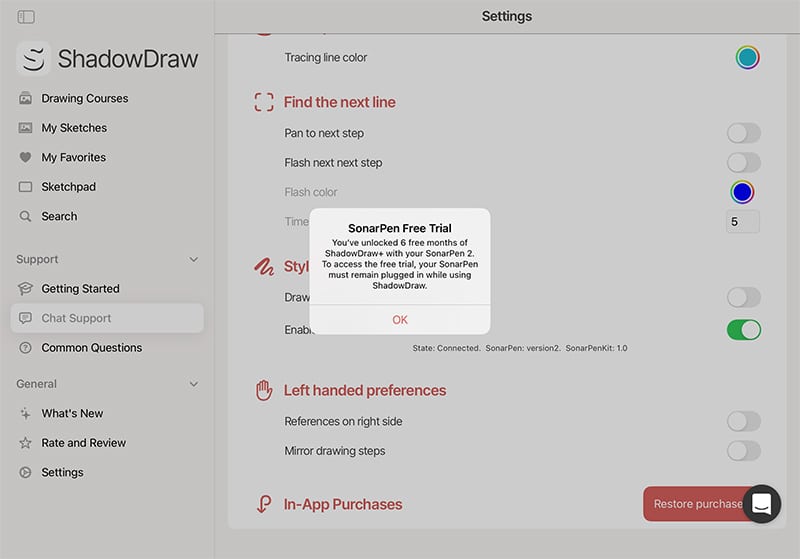
4. Plug in SonarPen 2 to the iPad. ShadowDraw detected the presents of SonarPen 2 and unlock 6 free months of ShadowDraw+ subscription. Enjoy the 2000+ free drawing lessons.
Download and run the HiPaint app
1. Click the 3 dots menu icon on the top right corner
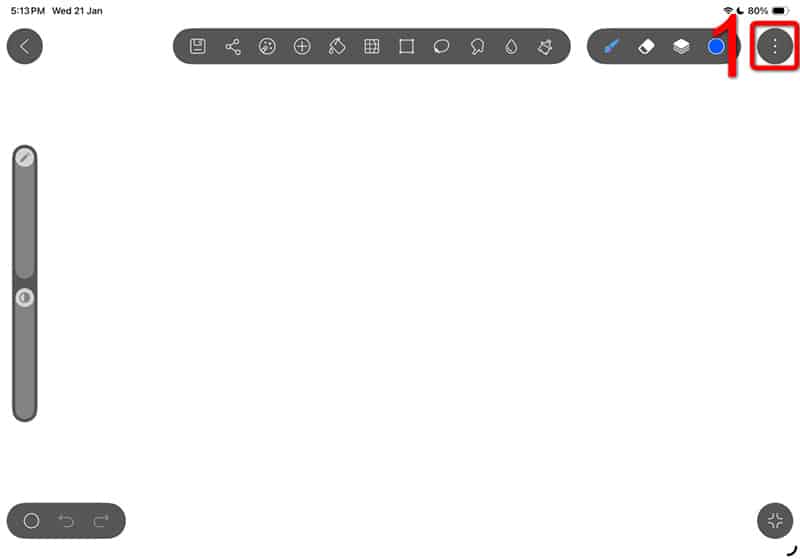
2. Scroll down to the menu and select Sketch Settings
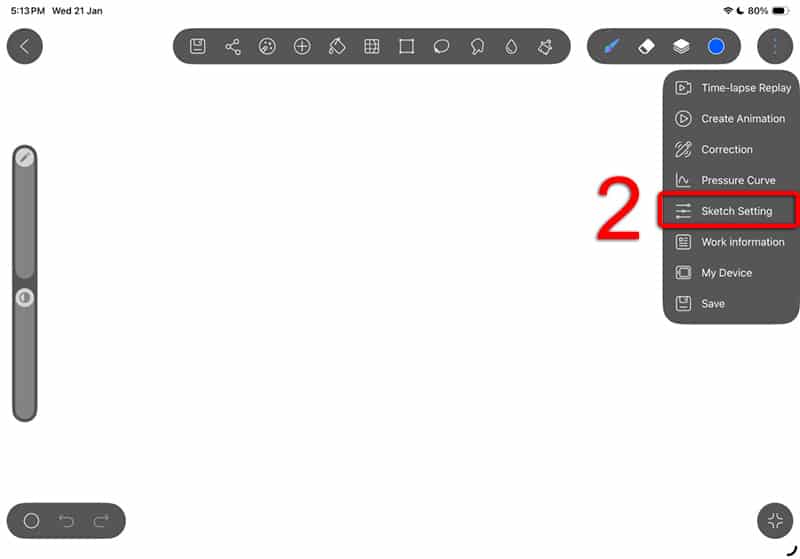
3. Turn on the Using SonarPen switch
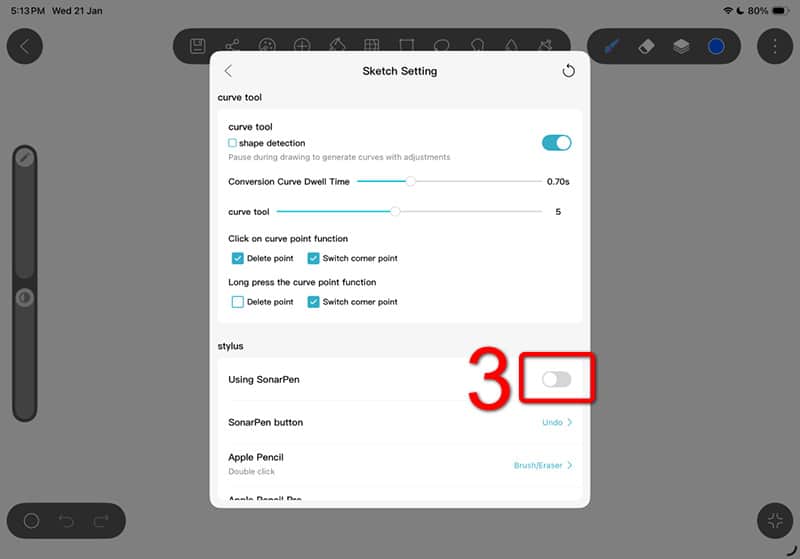
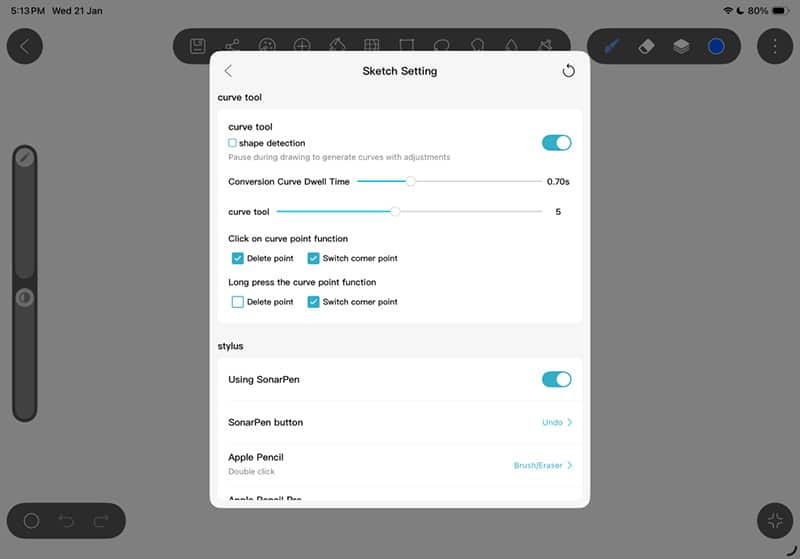
4. Click Allow to let HiPaint to access the MIC and communicate with SonarPen 2.
Plug in SonarPen 2 to the iPad and draw 😎
Download and run the Zen Brush 3 app
1. Click the 3 dots menu icon on the top right corner
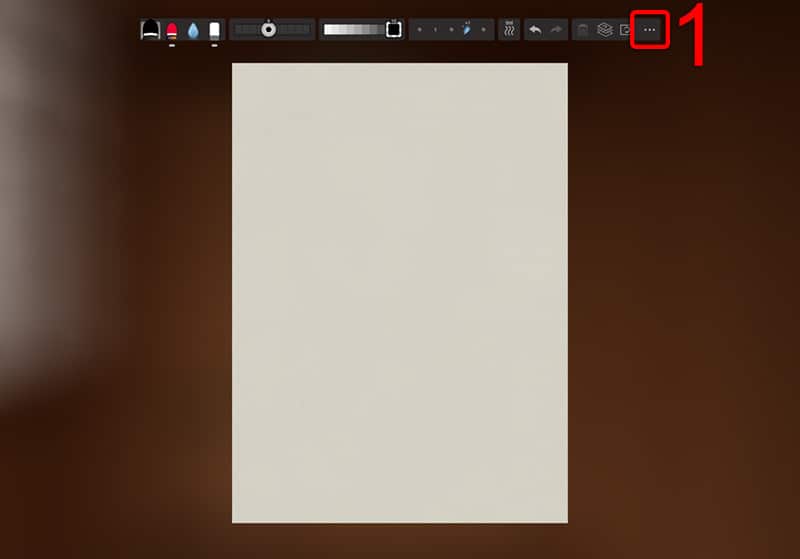
2. Select Settings from the menu
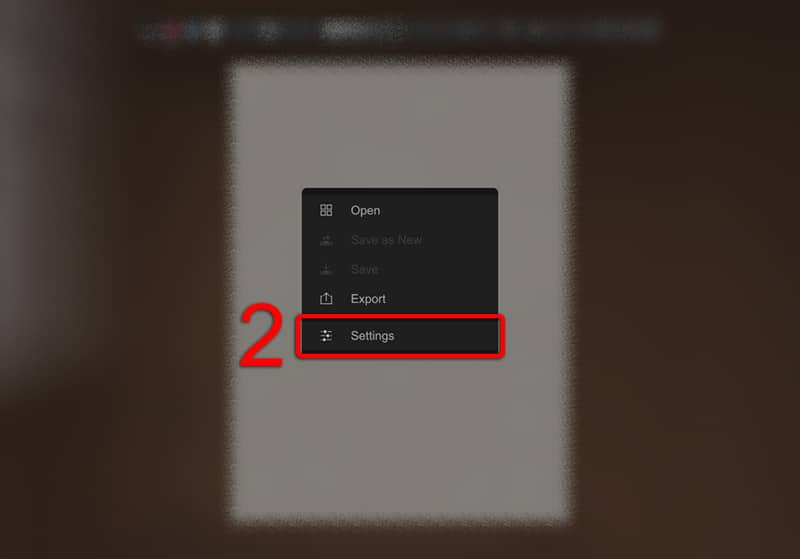
3. Select Other on the Settings dialog
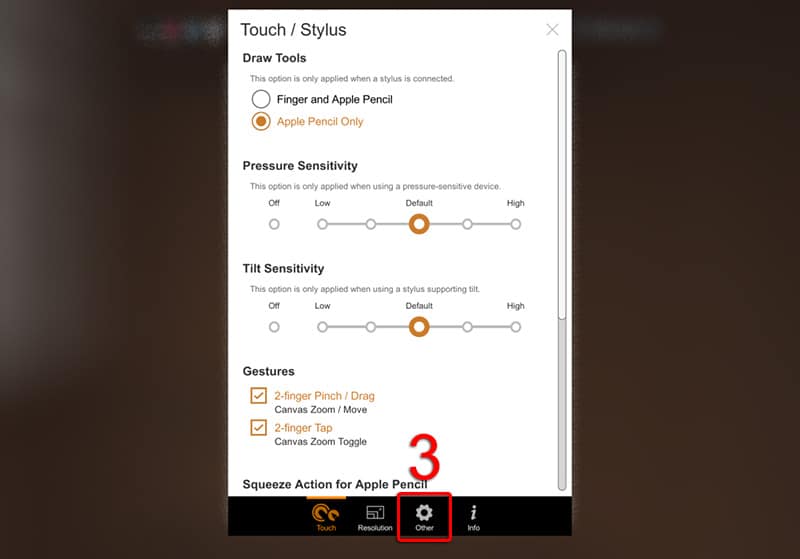
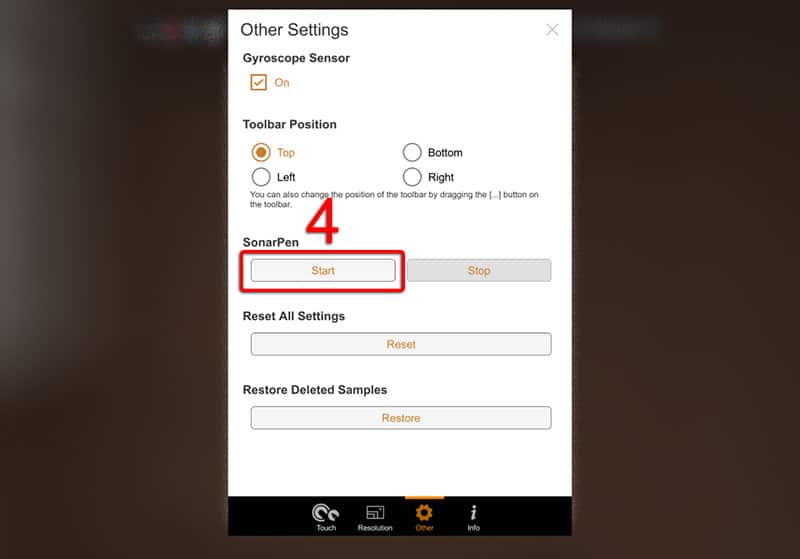
4. Click Start to activate SonarPen 2 support. **Let Zen Brush 3 to access the MIC and communicate with SonarPen 2.
Plug in SonarPen 2 to the iPad and enjoy Zen Brush😎
Download and run the Zen Brush 2 app
1. Click the menu icon on the low right corner
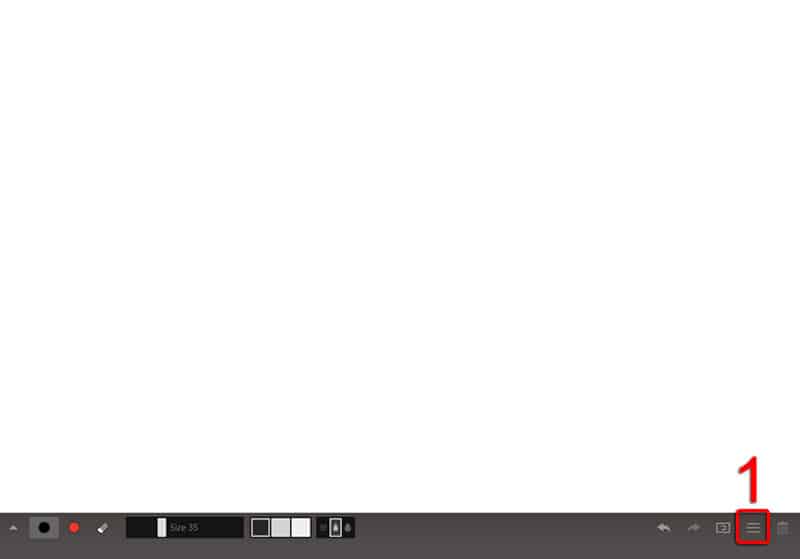
2. Select Touch/Stylus from the menu
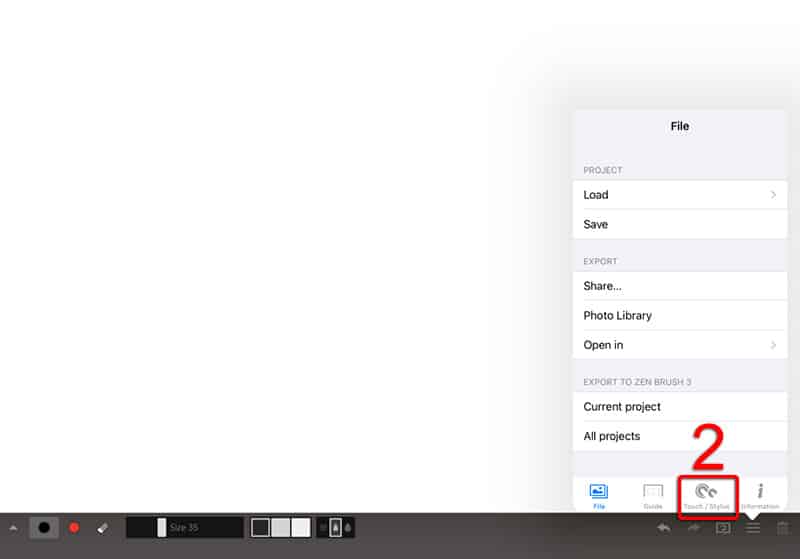
3. Select SonarPen from the list of DRAWING TOOL
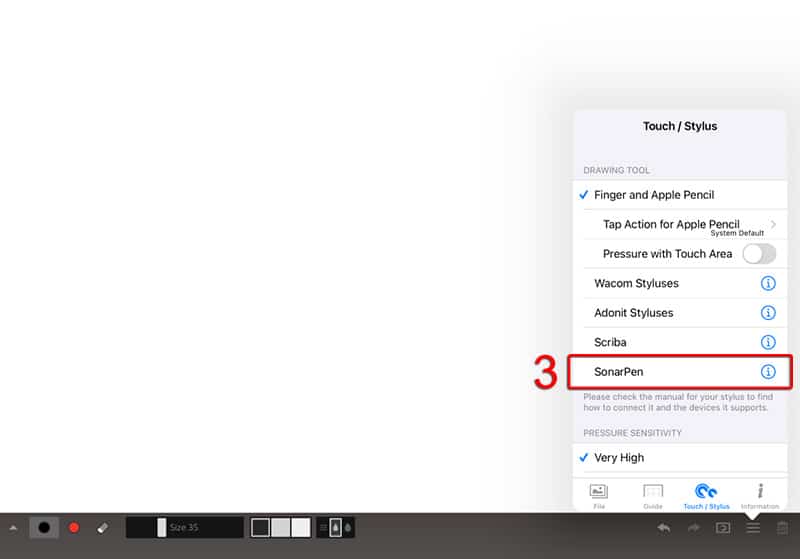
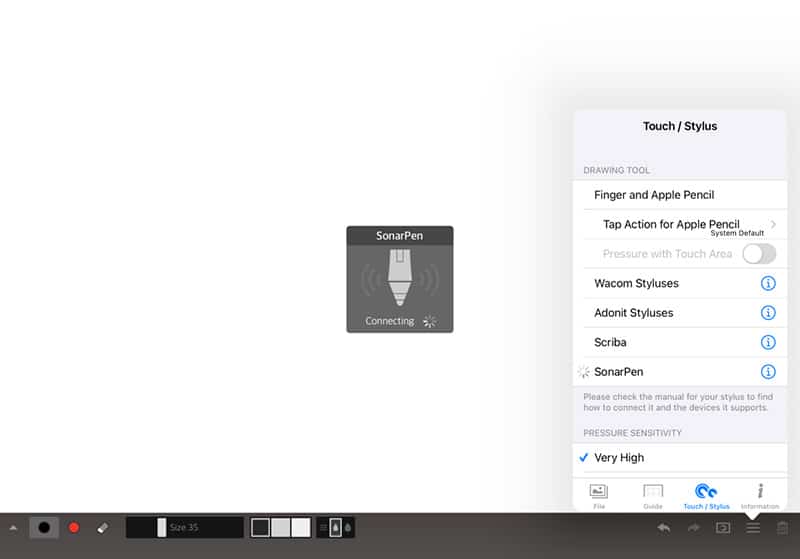
4. **Let Zen Brush 2 to access the MIC and communicate with SonarPen 2.
Plug in SonarPen 2 to the iPad and enjoy Zen Brush😎
Download and run the ZoomNotes / ZoomNotes Lite app
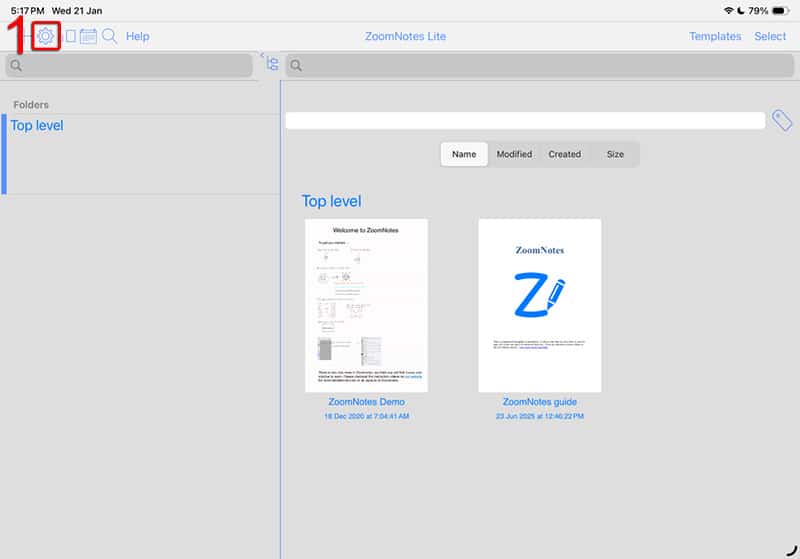
1. Click the GEAR icon on the top left corner
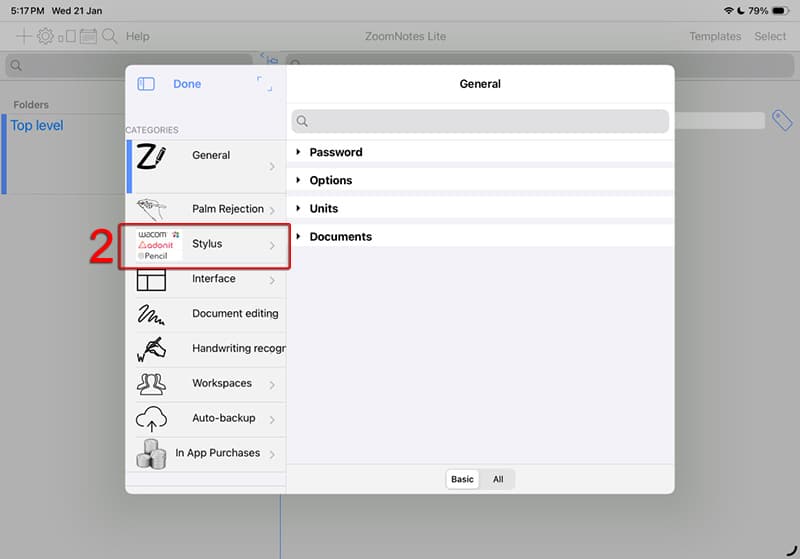
2. Select Stylus from the menu
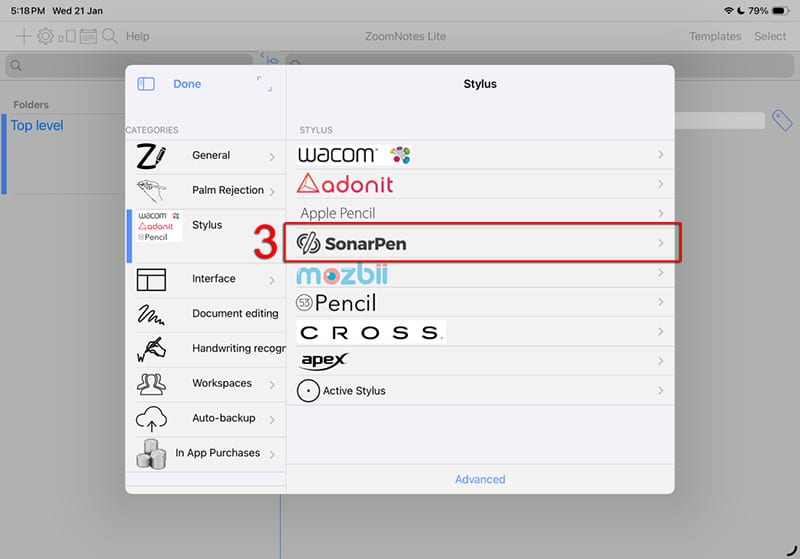
3. Select SonarPen from the list of STYLUS
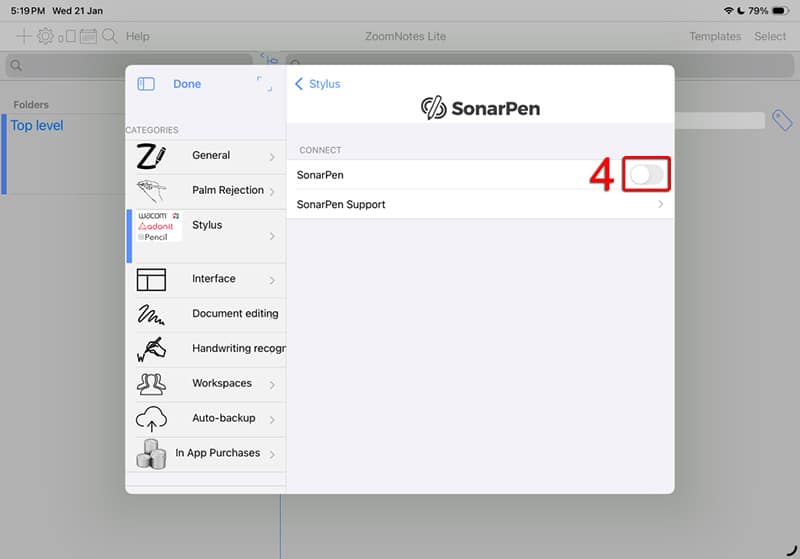
4. Turn on the SonarPen switch.
**Let ZoomNotes to access the MIC and communicate with SonarPen 2.
Plug in SonarPen 2 to the iPad and take your notes freely 😎
Download and run the Spacedesk app
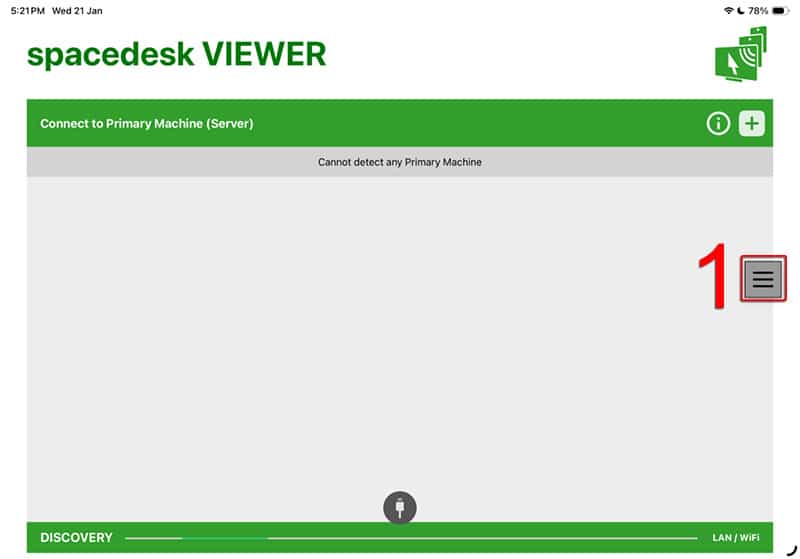
1. Click the menu button on the right side
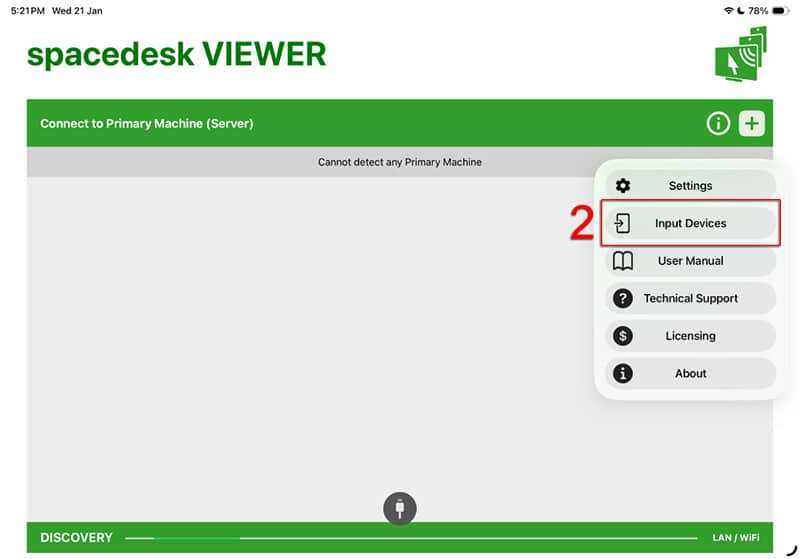
2. Select Input Devices from the menu
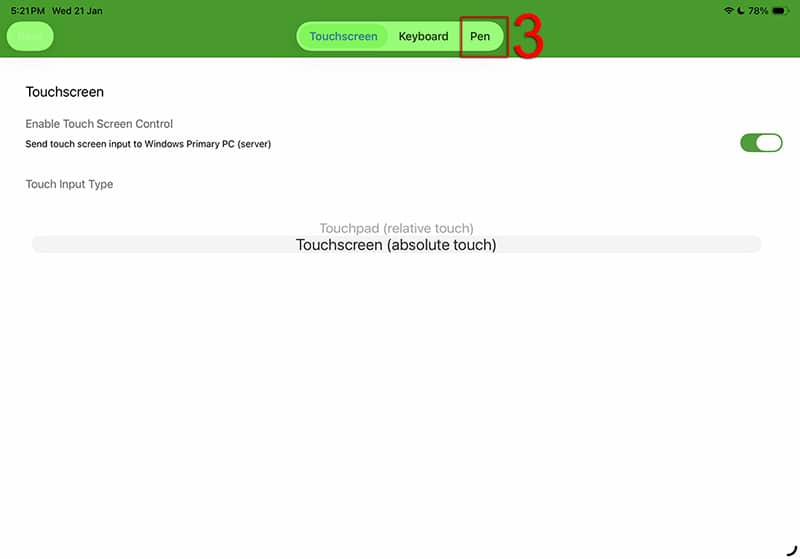
3. Select Pen at the top
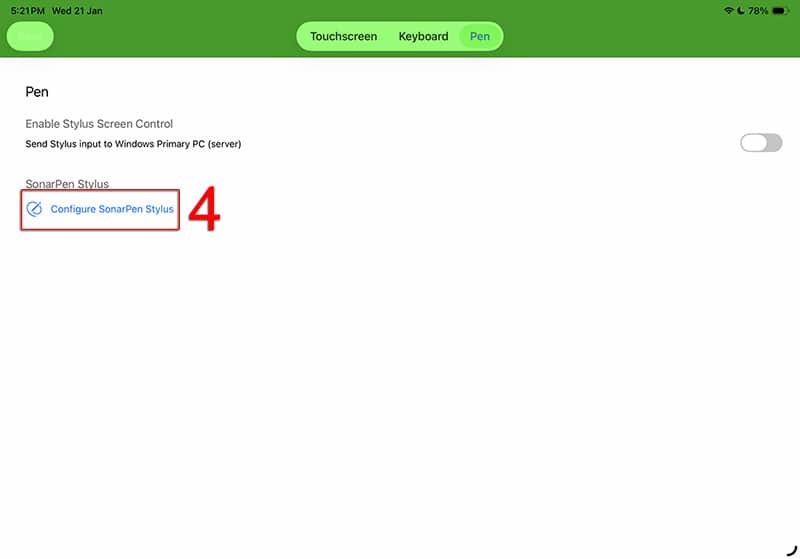
4. Click Configure SonarPen Stylus
5. Click Enable SonarPen on the pop up dialog
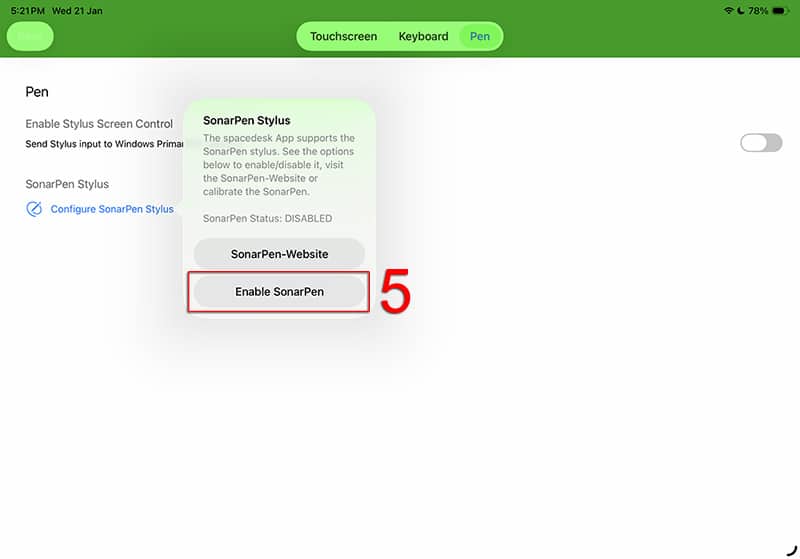
6.**Let Spacedesk to access the MIC and communicate with SonarPen 2.
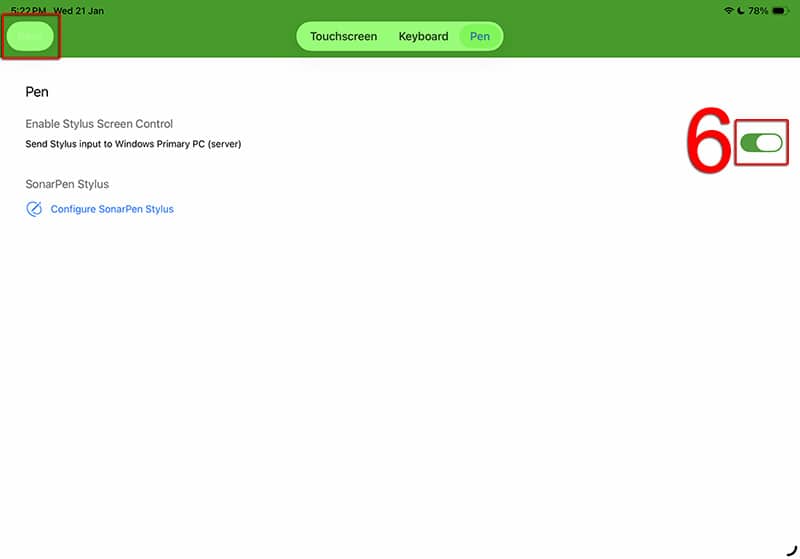
Plug in SonarPen 2 to the iPad 😎
Turn on the Send Stylue input to windows Primary PC (server) switch and click SAVE to exit
Download and run the Linea Sketch app
1. Click the gear button on the top left
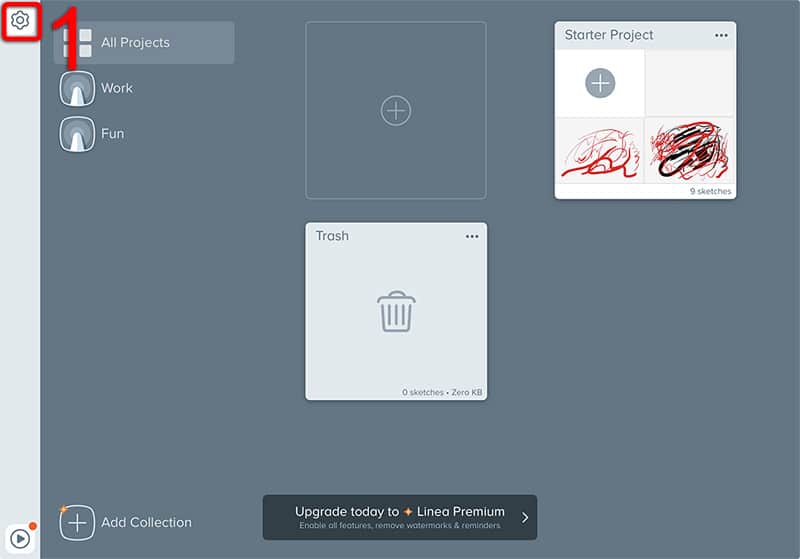
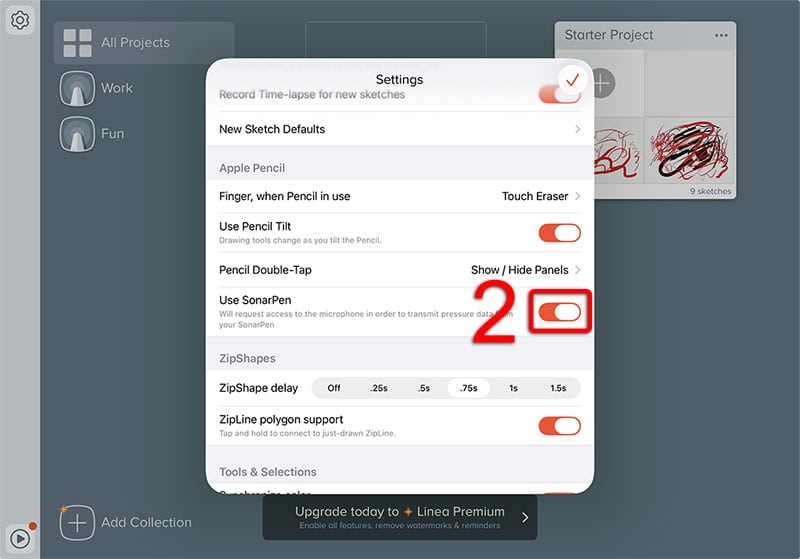
2. Turn on the SonarPen 2 switch.
**Let Linea Sketch to access the MIC and communicate with SonarPen 2.
Plug in SonarPen 2 to the iPad and start sketching with SonarPen 2 😎
How to enable SonarPen 2 in supported apps:
Download and run the FlipaClip app
1. Click the Menu icon on top left corner
2. Click App Settings
3. Click SonarPen under Stylus
4. Turn on the switch
** Click Allow to let FlipaClip to access the MIC to communicate with SonarPen 2
Plug in SonarPen 2 to the iPad and start animate 😎
Download and run the ibis Paint / ibis Paint X app
1. Click the GEAR icon on the top right corner
2. On the Settings dialog, scroll down to Supported Styluses
3. Select SonarPen
4. Click OK to use SonarPen
** Click Allow to let ibis Paint to access the MIC and communicate with SonarPen 2
Plug in SonarPen 2 to the iPad and start to draw 😀
Download and run the ShadowDraw app
1. Click Settings on the menu
2. On the Settings panel, turn on the Enable SonarPen 2 switch
3. Click Allow to let ShadowDraw to access the MIC and communicate with SonarPen 2.
4. Plug in SonarPen 2 to the iPad. ShadowDraw detected the presents of SonarPen 2 and unlock 6 free months of ShadowDraw+ subscription. Enjoy the 2000+ free drawing lessons.
Download and run the HiPaint app
1. Click the 3 dots menu icon on the top right corner
2. Scroll down to the menu and select Sketch Settings
3. Turn on the Using SonarPen switch
4. Click Allow to let HiPaint to access the MIC and communicate with SonarPen 2.
Plug in SonarPen 2 to the iPad and draw 😎
Download and run the Zen Brush 3 app
1. Click the 3 dots menu icon on the top right corner
2. Select Settings from the menu
3. Select Other on the Settings dialog
4. Click Start to activate SonarPen 2 support. **Let Zen Brush 3 to access the MIC and communicate with SonarPen 2.
Plug in SonarPen 2 to the iPad and enjoy Zen Brush😎
Download and run the Zen Brush 2 app
1. Click the menu icon on the low right corner
2. Select Touch/Stylus from the menu
3. Select SonarPen from the list of DRAWING TOOL
4. **Let Zen Brush 2 to access the MIC and communicate with SonarPen 2.
Plug in SonarPen 2 to the iPad and enjoy Zen Brush😎
Download and run the ZoomNotes / ZoomNotes Lite app
1. Click the GEAR icon on the top left corner
2. Select Stylus from the menu
3. Select SonarPen from the list of STYLUS
4. Turn on the SonarPen switch.
**Let ZoomNotes to access the MIC and communicate with SonarPen 2.
Plug in SonarPen 2 to the iPad and take your notes freely 😎
Download and run the Spacedesk app
1. Click the menu button on the right side
2. Select Input Devices from the menu
3. Select Pen at the top
4. Click Configure SonarPen Stylus
5. Click Enable SonarPen on the pop up dialog
6.**Let Spacedesk to access the MIC and communicate with SonarPen 2.
Plug in SonarPen 2 to the iPad 😎
Turn on the Send Stylue input to windows Primary PC (server) switch and click SAVE to exit
Download and run the Linea Sketch app
1. Click the gear button on the top left
2. Turn on the SonarPen 2 switch.
**Let Linea Sketch to access the MIC and communicate with SonarPen 2.
Plug in SonarPen 2 to the iPad and start sketching with SonarPen 2 😎